
1. Introduction
Microsoft Word has become an important part of modern digital communication. Before word-processing software became common, people generally relied on typewriters and handwritten documents. Editing a document often required rewriting entire sections, making corrections manually, or creating a completely new copy.
Word-processing applications changed this process by allowing users to create and modify documents electronically. Microsoft Word made it easier to correct mistakes, organize information, apply professional formatting, and save documents for future use.
Today, Word is used in educational institutions, government departments, private companies, and homes. Its flexible features support both basic writing activities and complex document preparation.
For example, a student can use Word to prepare an assignment, while a business professional can create a detailed proposal containing headings, tables, charts, and references.
2. What Is Word (Microsoft Word)?
Microsoft Word is a word-processing program developed by Microsoft. It allows users to create, edit, format, save, print, and share text-based documents.
In simple terms, Microsoft Word is software that helps people write and organize information in a professional digital format.
Users can create different types of documents, including:
- Business letters and official applications.
- School assignments and university research papers.
- Professional resumes and cover letters.
- Reports, proposals, and presentations in document form.
- Meeting notes and project documentation.
- Manuals, guides, and educational materials.
Microsoft Word supports several document formats. Its standard modern file format is DOCX, while it can also work with formats such as DOC, PDF, RTF, and TXT, although available editing capabilities vary by format.
One important advantage is that users do not need advanced technical knowledge to get started. Basic typing, editing, and formatting can be learned quickly, while advanced tools provide additional control for more demanding projects.
3. History and Development of Microsoft Word
Microsoft Word has developed significantly since its introduction in the early 1980s. The original version was released in 1983 for Xenix and MS-DOS systems under the name Multi-Tool Word.
Over time, Microsoft expanded Word’s availability to different operating systems and introduced graphical interfaces that made document creation more accessible.
The Windows versions helped establish Word as a major productivity application. Later releases introduced improved formatting, spelling and grammar tools, templates, tables, graphics, and more advanced document-management capabilities.
The introduction of the DOCX format with Office 2007 was another important development. Based on Office Open XML, this format improved document structure and compatibility with modern Microsoft Office applications.
Microsoft subsequently expanded Word beyond traditional desktop software. Word Online introduced browser-based document editing, while mobile applications made it possible to work with documents on smartphones and tablets.
Modern versions also include cloud storage integration, real-time collaboration, accessibility improvements, and AI-powered capabilities in eligible environments.
These developments have transformed Microsoft Word from a basic writing program into a comprehensive document-production platform.
4. Main Features and Capabilities of Microsoft Word
Microsoft Word offers a wide range of features designed to make document creation more efficient. These tools help users produce attractive, readable, and well-organized documents.
Text Editing and Formatting
Word provides different formatting options, including font styles, font sizes, colors, bold text, italics, underlining, and highlighting. Users can also adjust paragraph alignment, indentation, and line spacing.
These options are useful when creating professional reports, assignments, and business documents.
Templates and Document Designs
Microsoft Word includes ready-made templates for resumes, letters, newsletters, brochures, reports, and other documents. Templates help users save time because they provide an existing layout that can be customized.
Tables and Charts
Users can insert tables to organize information into rows and columns. Charts and other visual elements can also help present complex information more clearly, although some advanced options depend on the Word version.
Spelling and Grammar Tools
Word includes spelling and grammar assistance that helps identify writing mistakes. Microsoft Editor also provides writing suggestions in supported versions and languages.
Images and Multimedia
Users can add pictures, shapes, icons, hyperlinks, and other visual elements to improve document presentation. These features are particularly helpful for educational materials, business reports, and professional guides.
Collaboration and Comments
Microsoft Word supports document sharing, comments, and collaborative editing. Multiple users can work on a shared document, making it easier for teams to review information and contribute suggestions.
Cloud Storage and AutoSave
When documents are stored in supported cloud locations, such as OneDrive, users can access them across compatible devices. AutoSave availability depends on the application and storage configuration.
These capabilities make Word useful for both individual work and collaborative projects. Microsoft Support+2
5. How Microsoft Word Works
Microsoft Word works by allowing users to enter information into a digital document and modify its appearance using different editing and formatting tools.
When a user opens Word, they can create a blank document or select an existing template. The document provides a workspace where text, images, tables, and other elements can be added.
The basic process involves several steps:
- Create a document: Open Microsoft Word and select a blank document or template.
- Enter content: Type text using a keyboard or use supported dictation features.
- Edit information: Add, remove, rearrange, or correct text.
- Format the document: Apply headings, fonts, paragraph styles, and page layouts.
- Insert additional elements: Add images, tables, links, or charts when needed.
- Save your work: Save the document in DOCX or another supported format.
- Share or export: Send the document to others or export it as a PDF.
Word organizes document content into pages and sections. Its formatting system helps maintain consistent layouts, while built-in editing tools make revisions easier.
For example, when preparing a business proposal, users can create a title page, organize information under headings, insert a pricing table, and add a company logo within one document.
6. Understanding the Microsoft Word Interface
The Microsoft Word interface is designed to provide convenient access to writing, editing, and formatting tools.
Understanding its main components helps beginners work more confidently.
Title Bar: Displays the document name and application information.
Quick Access Toolbar: Provides shortcuts to frequently used commands, such as Save, Undo, and Redo.
Ribbon: Contains the main commands organized into tabs.
Document Workspace: The central area where users type and edit content.
Status Bar: Displays information such as page numbers, word count, and document status.
Navigation Pane: Helps users search for words, locate headings, and move through longer documents.
The Ribbon includes several important tabs:
- Home: Text formatting, paragraph settings, and styles.
- Insert: Tables, pictures, links, and other elements.
- Layout: Page orientation, margins, and spacing.
- References: Citations, footnotes, and table-of-contents tools.
- Review: Comments, spelling assistance, and document revisions.
- View: Document display and reading options.
The availability and exact appearance of these tools can differ between desktop, web, and mobile versions.
7. Creating, Editing, and Formatting Documents
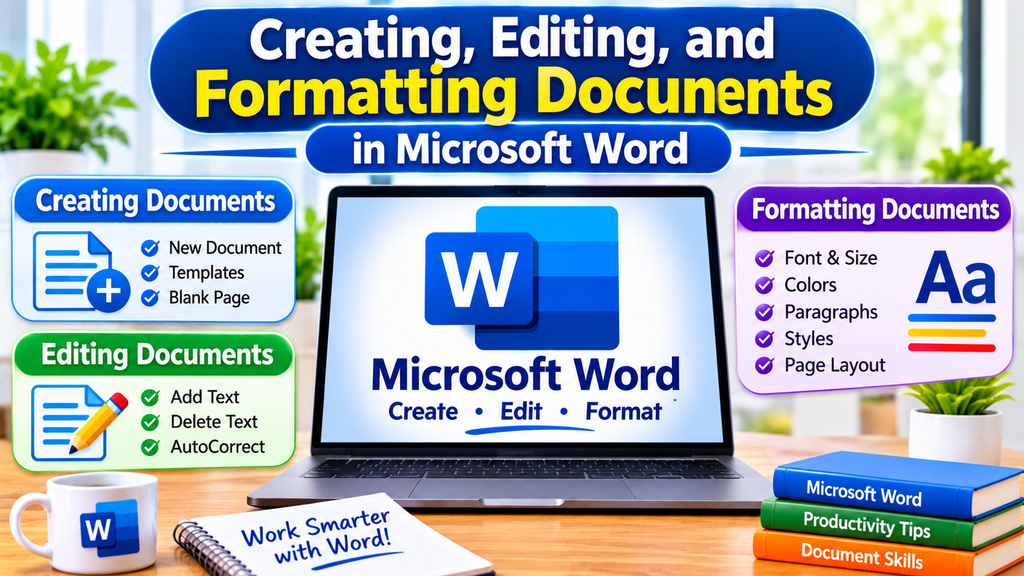
Creating and formatting documents is the primary purpose of Microsoft Word. Its editing tools help users transform simple text into structured and professional content.
Creating a New Document
Users can select Blank Document to start writing from scratch or choose a template for a specific purpose.
Editing Existing Content
Word allows users to select, copy, cut, paste, delete, and move text. Find and Replace is particularly useful for locating specific words and changing repeated information throughout a document.
Applying Professional Formatting
A well-formatted document is easier to read and understand. Users should apply consistent heading styles, readable fonts, appropriate paragraph spacing, and organized lists.
For longer documents, built-in heading styles are especially helpful because they create a consistent structure and can support automatic tables of contents.
Managing Pages
Word provides page layout options such as margins, orientation, page breaks, and page numbering. These tools help users prepare documents for printing and professional distribution.
Saving and Exporting Documents
The standard DOCX format is suitable for editing and sharing Word documents. Users can also export documents as PDFs when they want to preserve a convenient viewing and printing format.
8. Advanced Features and Productivity Tools
Beyond basic writing and formatting, Microsoft Word includes advanced tools that support complex document workflows.
Track Changes: This feature records edits made during document review. Authors can examine suggested changes and accept or reject them individually.
Mail Merge: Available in the desktop application, Mail Merge helps create personalized letters, labels, and other documents using a data source.
References and Citations: Users can manage references, add footnotes, and prepare academic documents with citation tools. Some advanced reference capabilities are desktop-specific.
Table of Contents: Word can generate a table of contents using document headings. This makes longer reports and research papers easier to navigate.
Dictation: Supported versions allow users to speak instead of typing. This can be helpful when preparing notes or drafting content.
Accessibility Checker: This tool identifies certain accessibility issues and suggests improvements, helping users create documents that are easier for different audiences to access.
Macros: In supported desktop environments, macros can automate repetitive actions and simplify complex document tasks.
Microsoft Copilot: Eligible Microsoft 365 environments may provide AI-assisted features for drafting, summarizing, and working with document content. Availability depends on the subscription, account, region, and current product configuration.
These tools can save time, improve consistency, and make document management more effective. Microsoft Support+2
9. Microsoft Word for Students and Education
Microsoft Word is particularly valuable in schools, colleges, universities, and other educational environments.
Students use it to prepare assignments, research papers, essays, presentations in document form, and project reports. Its formatting tools help organize academic information into clear sections.
Teachers can use Word to prepare lesson plans, worksheets, examination papers, reading materials, and educational guidelines.
One important benefit is the ability to edit documents without rewriting everything. Students can correct mistakes, reorganize paragraphs, and improve their work before submission.
Word also supports academic formatting through headings, page numbering, footnotes, and references in supported versions.
For example, a university student preparing a research paper can organize chapters using heading styles, insert a table of contents, add citations, and export the final document as a PDF.
Educational institutions may also provide Microsoft 365 access through eligible student or institutional accounts.
10. Microsoft Word for Businesses and Professionals
Businesses rely on accurate documentation for communication, administration, planning, and reporting. Microsoft Word supports these activities by providing flexible document creation and editing tools.
Professionals commonly use Word to prepare:
- Business proposals and company reports.
- Contracts and policy documents.
- Meeting minutes and project plans.
- Employee guidelines and training materials.
- Resumes and professional correspondence.
- Marketing documents and company profiles.
Teams can share documents, add comments, and review changes before final approval.
For example, a marketing team can prepare a campaign proposal in Word, insert tables showing planned activities, and share the document with managers for feedback.
Its familiar interface and compatibility with commonly used document formats make it a practical option for many professional environments.
However, organizations should use appropriate access permissions and document security practices when handling confidential information.
11. Microsoft Word Online vs. Desktop Version
Microsoft Word is available in different environments, mainly as a desktop application and a browser-based version called Word for the web.
Both versions support document creation and editing, but they are designed for slightly different working requirements.
Microsoft Word Desktop
The desktop version is installed on a computer and provides a broader collection of document-management and formatting tools.
Its advantages include:
- More advanced page-layout options.
- Additional reference and citation tools.
- Support for macros and advanced automation.
- More extensive document-formatting capabilities.
- Offline document editing.
- Advanced printing and document-management options.
It is suitable for professionals, researchers, students, and users who regularly prepare complex documents.
Microsoft Word Online
Word for the web allows users to create and edit documents through an internet browser. It is accessible through a Microsoft account and offers free web-based Word functionality.
Its main advantages include:
- Access through a web browser.
- No traditional desktop installation required.
- Document sharing and collaboration.
- Basic formatting and editing tools.
- Integration with OneDrive.
- Convenient access from different supported devices.
However, some advanced desktop features are unavailable or limited online.
| Feature | Word Desktop | Word Online |
|---|---|---|
| Basic editing | Yes | Yes |
| Text formatting | Advanced | Available |
| Cloud collaboration | Yes | Yes |
| Offline editing | Yes | No |
| Advanced macros | Yes | No |
| Basic templates | Yes | Yes |
| PDF export | Yes | Yes |
| Advanced references | More complete | Limited |
The best choice depends on individual requirements. Users who need advanced formatting and offline functionality may prefer desktop Word, while those who need convenient browser-based access may find Word Online sufficient. Microsoft Support+2
12. Benefits and Limitations of Microsoft Word
Microsoft Word offers several advantages, but understanding its limitations is equally important when selecting document-processing software.
Benefits of Microsoft Word
1. Easy to Use: Its familiar interface allows beginners to create and edit documents without extensive technical knowledge.
2. Professional Formatting: Users can create attractive documents using fonts, styles, tables, images, and page-layout tools.
3. Time Efficiency: Templates, keyboard shortcuts, automatic formatting, and editing tools reduce repetitive work.
4. Wide Compatibility: DOCX is a commonly supported document format, making it easier to exchange files with other users.
5. Collaboration: Sharing, comments, and reviewing tools support teamwork and document approval.
6. Multiple Applications: Word can support educational, professional, administrative, and personal writing requirements.
7. Cloud Integration: OneDrive integration helps users store and access documents across supported devices.
Limitations of Microsoft Word
Despite its capabilities, Microsoft Word has some limitations.
- Some desktop features require a paid Microsoft 365 subscription or an eligible license.
- Advanced formatting can be difficult for inexperienced users.
- Complex documents may display differently across applications or software versions.
- Word Online does not provide every desktop feature.
- Documents containing sensitive information require appropriate security and sharing settings.
- Very large or highly designed publications may be better managed using specialized publishing software.
Understanding these advantages and disadvantages helps users decide whether Word is the right solution for their document-related tasks.
13. Microsoft Word Alternatives
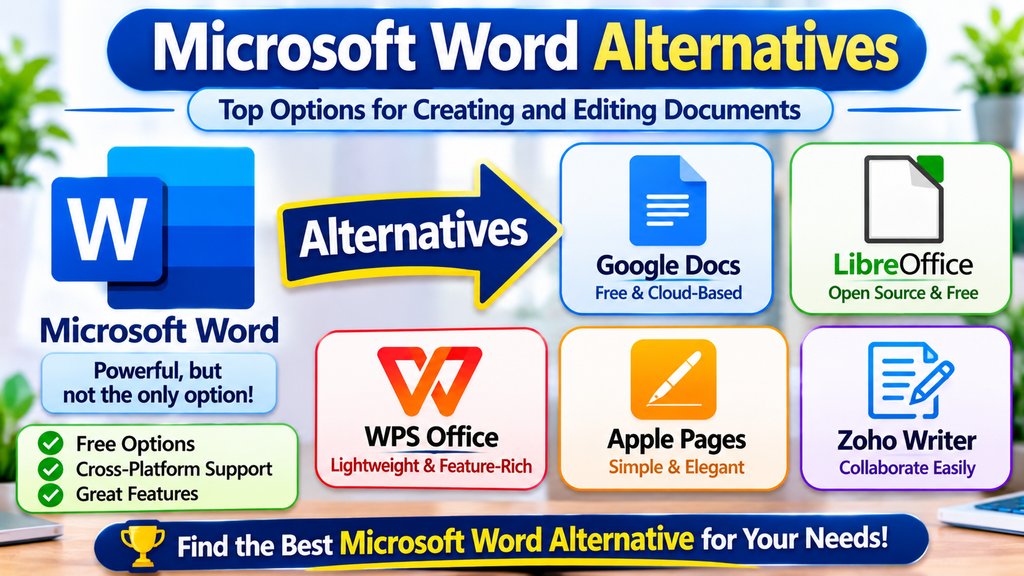
Although Microsoft Word is a popular word processor, several alternatives offer similar document-creation capabilities.
Google Docs
Google Docs is a browser-based word processor developed by Google. It supports document editing, cloud storage, sharing, and real-time collaboration.
It is a practical option for students and teams who frequently work together online.
LibreOffice Writer
LibreOffice Writer is a free, open-source word-processing application. It offers document formatting, tables, templates, and support for various file formats.
It is suitable for users looking for a desktop writing application without a Microsoft 365 subscription.
Apple Pages
Apple Pages is a document application designed for Apple’s ecosystem. It offers attractive templates, page-design tools, and document collaboration features.
It can be a good option for Mac, iPad, and iPhone users.
WPS Writer
WPS Writer is part of WPS Office and provides tools for writing, editing, and formatting documents. It supports commonly used document formats and offers a familiar interface.
The best alternative depends on budget, compatibility requirements, preferred devices, and collaboration needs.
14. Tips for Using Microsoft Word More Efficiently
Learning a few practical techniques can make Microsoft Word easier and faster to use.
Use Keyboard Shortcuts: Shortcuts such as Ctrl+C for copying, Ctrl+V for pasting, Ctrl+Z for undoing, and Ctrl+S for saving can reduce unnecessary mouse movements.
Apply Heading Styles: Use built-in heading styles instead of manually changing every heading. This creates consistent formatting and makes long documents easier to organize.
Use Templates: Start with an appropriate template when preparing resumes, business letters, reports, or other frequently used documents.
Enable AutoSave When Available: Store supported documents in OneDrive and use AutoSave to help preserve changes automatically.
Use Find and Replace: Quickly locate repeated words, phrases, or information and update them throughout a document.
Check Spelling and Grammar: Review writing suggestions before sharing or publishing a document.
Organize Long Documents: Use page breaks, section breaks, headings, and page numbers to maintain a professional structure.
Review Before Sharing: Check formatting, spelling, hyperlinks, images, and document permissions before sending a final version.
Learn Mail Merge: If you regularly prepare personalized letters or labels, learning Mail Merge can significantly reduce repetitive work.
Save Backup Copies: Keep an additional copy of important documents to reduce the risk of losing valuable information.
These simple practices can improve document quality while helping users complete everyday writing tasks more efficiently.
15. Frequently Asked Questions (FAQs)
1. What is Microsoft Word used for?
Microsoft Word is used to create, edit, format, save, print, and share digital documents. Common uses include writing letters, preparing assignments, creating reports, and developing professional business documents.
2. Is Microsoft Word free to use?
Yes, Microsoft provides a free web version of Word through a Microsoft account. However, access to the full desktop application and certain advanced features generally requires an eligible paid subscription or license. Microsoft Support
3. What are the main features of Word?
Its main features include text formatting, document templates, tables, images, spelling and grammar assistance, page layouts, comments, collaboration, and document exporting.
4. Can I use Microsoft Word online?
Yes. Word for the web allows users to create, edit, and share documents through a browser. Users can sign in with a Microsoft account and work with supported files online.
5. What is the difference between Word and Word Online?
Word generally refers to Microsoft’s word-processing application, including its desktop versions. Word Online is the browser-based version. The desktop application provides additional advanced tools, while Word Online focuses on convenient web access and collaboration.
6. Is Microsoft Word suitable for professional work?
Yes. Word is suitable for creating business reports, proposals, contracts, resumes, official letters, and other professional documents. Its formatting and reviewing tools support a wide range of workplace requirements.
7. What are the best alternatives to Microsoft Word?
Popular alternatives include Google Docs, LibreOffice Writer, Apple Pages, and WPS Writer. Each offers different features, pricing options, and compatibility benefits.
Conclusion
Microsoft Word remains a valuable word-processing solution for individuals, students, educators, businesses, and professionals. Its combination of editing, formatting, document organization, collaboration, and cloud-based capabilities makes it suitable for a wide range of writing requirements.
From preparing simple notes to developing detailed business reports and academic research papers, Word provides tools that help users create structured and professional documents.
Although alternatives such as Google Docs and LibreOffice Writer offer useful features, Microsoft Word continues to be a practical choice for users who need a familiar interface and extensive document-formatting capabilities.